
Startin’ out: what y’all need to know
Look, buyin’ your first all-in-one ain’t gotta feel like wranglin’ a mule. Folks start by askin’ easy questions — will it fit my desk, can I run my apps, and how long’ll it last? If you’re huntin’ for bargains while avoidin’ junk, glance through current all in one computer deals before you lock somethin’ in; you get a sense of price bands and what’s normal for features. This piece answers the practical things first-time buyers usually miss, from real performance to real costs.
What an all-in-one actually gives you
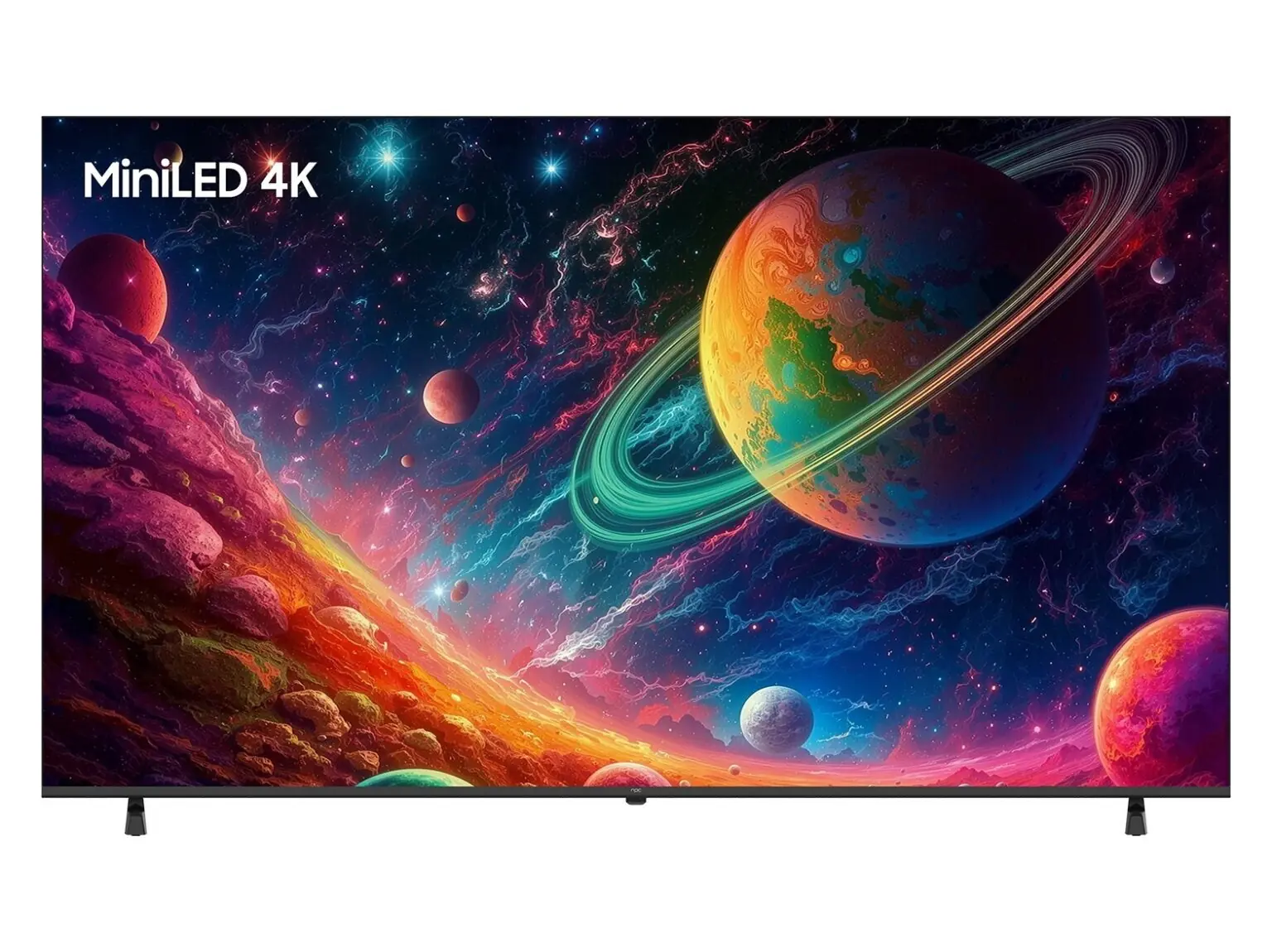
An all-in-one swaps a tower for tidy packaging: screen, computer, speakers, and usually webcam all bundled. That means less cable chaos and less desk real estate used. You get compactness and often a prettier setup. You give up some upgrade headroom compared to desktops, so think of ’em like long-lived appliances rather than modular toolkits.
Which buyer profiles fit best
If yer mostly doin’ web work, office suites, video calls, light photo edits or schoolwork, an AIO’s a fine match. Gamers heavy on high frames or folks who need tons of GPU grunt should steer toward a dedicated desktop or a gaming laptop. Creatives who need color-critical displays should look for IPS panels with higher color coverage — don’t assume pretty glass equals accurate color.
Specs that actually matter — and what they mean
CPU: Modern Intel i5/i7 or AMD Ryzen 5/7 handle daily work fine. RAM: 8GB’s the bare minimum; 16GB is sensible if you multitask. Storage: SSDs cut boot/load times sharply — choose NVMe if you can. Screen: resolution and panel type matter; 1080p’s fine for most, 4K only if you work with high-res media. Ports: check for at least a couple of USB-A, one USB-C with power or data, and an HDMI or DisplayPort out if you want a second monitor later.

Peripherals, upgrades, and common pitfalls
Don’t forget mouse and keyboard quality — they’re what you touch all day. Confirm whether the RAM or SSD are user-replaceable; some models tuck components behind glued panels. A common mistake is buying the prettiest screen with the weakest internals. Another is ignorin’ warranty and local support options — that bites when somethin’ fails.
Security, software, and maintenance
Enable full-disk encryption if you store sensitive files and set up a reliable backup routine. Keep firmware and drivers updated straight from the maker, not from random downloads. For dust and heat: keep ventilation clear and expect occasional light internal cleaning after a few years to keep fans happy.
When business needs meet first-time buyers
Small offices often pick AIOs for neat layouts and easier provisioning. For example, offices around Austin, Texas, that shifted to hybrid setups favored compact workstations for shared spaces — many of those teams leaned on proven commercial models when buyin’ for staff. If you’re buyin’ for a business, prioritize models with business-class warranties, predictable driver support, and manageability options; consider all in one pc for business choices that list enterprise features and long-term support.
Alternatives you should weigh
Desktop tower: best for upgradability and raw performance. Laptop: takes portability to the next level. Mini-PC plus monitor: keeps upgrades doable while keepin’ desk space small. Pick the form that matches how you work, not just how it looks.
Wrap-up: make a sensible pick
You want a machine that’ll do your daily chores, last a few years, and be simple to support. Check CPU, RAM, SSD, and panel type; confirm warranty and service; avoid lovin’ a thin chassis if the innards are weak. If neat desks and straightforward provisioning matter, the right all-in-one can be the sensible answer — and you’ll find consistent, business-minded options from npc that fit what most first-timers actually need.